Skip to content
Facebook Instagram X-twitter Youtube Linkedin Phone

9033 9th St. Rancho Cucamonga, CA 91730

Menu
  • (800) 700-7683
Get A Quote
  • Sell Your Equipment
    • Servers
    • Storage Equipment
    • Networking Equipment
    • Tape Media
    • Memory
    • CPUs
    • Laptops
    • Telecom
    • Data Center Lots
    • Get a Quote
  • How It Works
    • Equipment Buyback Guide
    • The Complete Server Buyback Guide
    • Network Equipment Buyback Guide
    • Get A Quote
    • Secure Shipping
    • FAQ
  • Industries
    • Enterprise
    • Healthcare
    • Finance
    • Government
    • Education
    • MSPs & VARs
    • Data Centers
    • International
  • Resources
    • About Us
    • Contact Us
    • Blog
    • Videos
    • Case Studies
  • DES Services
    • ITAD Services
    • Data Destruction
    • NIST 800-88
    • Data Center Decommissioning
    • Electronics Recycling
    • Compliance & Certifications
  • Sell Your Equipment
    • Servers
    • Storage Equipment
    • Networking Equipment
    • Tape Media
    • Memory
    • CPUs
    • Laptops
    • Telecom
    • Data Center Lots
    • Get a Quote
  • How It Works
    • Equipment Buyback Guide
    • The Complete Server Buyback Guide
    • Network Equipment Buyback Guide
    • Get A Quote
    • Secure Shipping
    • FAQ
  • Industries
    • Enterprise
    • Healthcare
    • Finance
    • Government
    • Education
    • MSPs & VARs
    • Data Centers
    • International
  • Resources
    • About Us
    • Contact Us
    • Blog
    • Videos
    • Case Studies
  • DES Services
    • ITAD Services
    • Data Destruction
    • NIST 800-88
    • Data Center Decommissioning
    • Electronics Recycling
    • Compliance & Certifications
  • Sell Your Equipment
    • Servers
    • Storage Equipment
    • Networking Equipment
    • Tape Media
    • Memory
    • CPUs
    • Laptops
    • Telecom
    • Data Center Lots
    • Get a Quote
  • How It Works
    • Equipment Buyback Guide
    • The Complete Server Buyback Guide
    • Network Equipment Buyback Guide
    • Get A Quote
    • Secure Shipping
    • FAQ
  • Industries
    • Enterprise
    • Healthcare
    • Finance
    • Government
    • Education
    • MSPs & VARs
    • Data Centers
    • International
  • Resources
    • About Us
    • Contact Us
    • Blog
    • Videos
    • Case Studies
  • DES Services
    • ITAD Services
    • Data Destruction
    • NIST 800-88
    • Data Center Decommissioning
    • Electronics Recycling
    • Compliance & Certifications
Get A Quote

How to Turn Your Old Computer into a Server (and Save Big in the Process)

Repurposing IT, Servers
  • Alex
  • July 21, 2025
  • 3:11 pm
Browse:
Home Repurposing IT How to Turn Your Old Computer into a Server (and Save Big in the Process)

Quick Answer

You can turn an old desktop into a functional home or small-business server — web, file/NAS, media, game, VPN, or dev/test — using free software like Ubuntu Server or Windows 10 Pro, a static IP, and remote access via SSH or Remote Desktop. Minimum specs are modest (4–8GB RAM for lightweight roles), and total cost is often $0–$100 versus $1,200+ for new server hardware. It’s a smart option for learning, homelabs, and small-scale services — but for production business apps, 24/7 SLAs, or multiple VMs, a real server (new or refurbished) is the safer investment.

If you’ve got an old desktop collecting dust, don’t be so quick to recycle it. With just a bit of time and effort, you can repurpose that aging machine into a fully functional home or small business server. Whether you’re looking to host websites, store files, stream media, or run development environments, turning your old computer into a server might be smarter—and cheaper—than you think.

But how do you actually do it? Is it safe? What kind of server can it be? And most importantly—is it worth it?

Let’s break it all down.

Why Repurpose a PC Into a Server?

It’s simple: cost savings and flexibility.

  • You avoid spending thousands on rack servers or cloud hosting

  • You gain total control over your data and applications

  • It’s ideal for learning, tinkering, or running small-scale services

  • It reduces e-waste (and clears out your closet)

Perfect use cases include:

  • Home lab setups

  • Small business file storage

  • Private media streaming

  • Isolated developer environments

  • DIY backup nodes

an IT professional working on turning his old pc into a server

What Type of Server Can Your PC Become?

Your old computer may not look like a server, but functionally, it can perform several key roles depending on your goals:

  • Web Server: Host personal websites or blogs using Apache, NGINX, or Windows IIS.

  • File or NAS Server: Share documents over your local network using SMB or FTP.

  • Media Server: Run Plex, Jellyfin, or Emby to stream movies and music.

  • Game Server: Host games like Minecraft or Valheim for friends.

  • VPN/Proxy Server: Securely access your network from anywhere.

  • Dev/Test Server: Use Docker, Git, or Kubernetes to build and test code.

Pro Tip: Linux distributions like Ubuntu Server or Debian are free and reliable. If you’re used to Windows, Windows 10 Pro or Windows Server works too.

Minimum Specs: What Does Your Old PC Need?

You don’t need enterprise-grade specs to get started. Many server roles are lightweight:

Use Case Recommended Specs
Web/File Server 4 GB RAM, Dual-core CPU
Media Server 8–16 GB RAM, Quad-core CPU
Dev/Test Lab 16 GB+ RAM, SSD
Virtualization 32 GB+ RAM, Multi-core CPU, SSD/HDD array

Remember: Data integrity > flashy specs. Always prioritize stable storage (RAID, backups) and power protection.

Step-by-Step: How to Set Up Your Server

  1. Pick an Operating System

    • Beginner-friendly: Ubuntu Server, Windows 10 Pro

    • Advanced: TrueNAS, Proxmox, AlmaLinux

  2. Set a Static IP Address
    Assign a fixed local IP to avoid conflicts.

  3. Enable Remote Access
    Use SSH (Linux) or Remote Desktop (Windows) to manage it headlessly.

  4. Install the Services You Need
    Web server? Install Apache. Media server? Set up Plex. Development? Try Docker.

  5. Secure Your Setup

    • Use strong passwords and enable firewalls

    • Change default ports

    • Disable unnecessary services

    • Consider two-factor authentication

Is It Safe to Use as a Public Server?

Here’s the honest answer: only if you know what you’re doing.

Exposing a home server to the internet without proper security can make it a hacker’s playground. If you’re not using:

  • VPN access

  • Reverse proxies

  • Auto-patching firewalls

  • Port-knocking techniques

…then it’s best to keep the server local or restrict access via VPN.

If your setup wouldn’t pass a basic cybersecurity audit, don’t use it for anything sensitive.
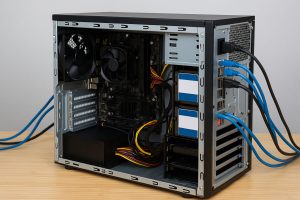
an old pc that was turned into a server

What’s the Cost Benefit?

Let’s look at some quick numbers:

Option Estimated Cost
New Rackmount Server $1,200–$5,000
Cloud Hosting (3 yrs) $900–$3,000
Repurposed PC $0–$100 (mainly upgrades)

If you already own the system, your only real investment is time and maybe a solid-state drive or upgraded RAM.

And best of all? No vendor lock-in, no recurring costs.

Things to Watch Out For

Before you dive in, keep these risks in mind:

  • Old hard drives can fail silently—replace them proactively.

  • Consumer PCs often lack ECC RAM and redundant power.

  • No remote management tools like IPMI or iLO.

  • Power-hungry desktops can offset sustainability gains if left running 24/7.

Want to go green? Consider using a small form factor PC or even a Raspberry Pi instead.

When It’s Time to Upgrade to a Real Server

Using an old PC is great for learning and experimentation. But if you’re running:

  • Critical business apps

  • Multiple VMs or containerized environments

  • 24/7 services with SLAs

  • Remote offices or branches

…you’re better off with professional server hardware.

Consider buying refurbished servers from trusted ITAD providers like We Buy Used IT Equipment—you’ll save up to 80% off OEM pricing and still get warranties.

Final Thoughts: Is It Worth It?

Absolutely—as long as you’re clear on your goals.

Repurposing a computer into a server is a smart way to extend its life, learn new skills, and save money. It’s not a perfect solution for every use case, but for backups, homelabs, and small business needs, it’s still a winning move.

And hey—if it turns out your old system isn’t up for the job? You can still get cash for it.

Want to Turn Your Old Computer into Cash Instead?

We’ll buy your used PCs, servers, and IT equipment—fast.

  • Free Quotes

  • Certified Data Destruction

  • Nationwide Pickup

  • Enterprise & SMB Solutions

Sell Your Old Computer Now

Frequently Asked Questions

What’s the minimum hardware needed to turn a PC into a server?

For lightweight roles like web or file serving, 4GB of RAM and a dual-core CPU is enough. Media servers and dev/test environments benefit from 8GB+ and an SSD.

Is a repurposed PC safe to expose to the internet?

Only with proper safeguards — VPN access, a reverse proxy, and a maintained firewall. Without these, keep the server local-network-only.

How much money can I save versus buying a new server?

A repurposed PC typically costs $0–$100 in upgrades versus $1,200–$5,000 for new rackmount hardware or $900–$3,000 for three years of cloud hosting.

When should I use real server hardware instead?

When you’re running production business applications, multiple VMs, or services with uptime requirements
— consumer PCs typically lack ECC RAM, redundant power, and remote management tools.

Browse:
Home Repurposing IT How to Turn Your Old Computer into a Server (and Save Big in the Process)

Phoenix
Certified

Learn More.

Get A Quote

Fill our form here
Picture of Alex

Alex

Expertise With over 15 years of experience in marketing and business development, Alex is a seasoned strategist in digital marketing, content creation, and brand growth, Ge has grown as a trusted voice in the technology and business sectors over the past decade. Education Alex holds a Master’s degree in Entrepreneurship and dual Bachelor’s degrees in Marketing and Entrepreneurial Management from California State University - San Bernardino. Experience Alex has led high-impact initiatives that have driven significant revenue growth, brand expansion, and customer engagement. His work includes managing e-commerce operations, optimizing digital advertising strategies, and developing content that educates and informs professionals about technology and business trends. Outside of Work Beyond his professional endeavors, Alex enjoys staying active and spending quality time with family.
PrevPreviousCan I Get Money for Recycling Old Electronics? Yes—Here’s How
NextIT Asset Management: Get the Job Done Right, From Procurement to DisposalNext

Client
Testimonials

“The buyback program was easy for me to use. I simply sent WEBUY an email with the list of surplus items that I had. WEBUY replied back with a quoted value. I then shipped WBUY the tapes and quickly received payment. The process was very easy and I felt good that I wasn’t throwing the equipment into the landfill and someone else can make use of them.

I will do business with WBUY again.”

Bay Industries Inc.

“I have to say once I found you the process was relatively quick and straightforward. Your website provided great details and once I submitted my inventory within 24 hours I had a quote and confirmation of the dollar amount.

The entire process from shipment to check in hand was painless and quick, I will most definitely use this service again and have already recommended it to my other peers.”

Masons of California

Subscribe To Our Newsletter

Your inbox deserves better. Sign up for regular updates, insights, and deals!

  • Sorry, this service is unavailable in your country.

  • Should be Empty:
Facebook Instagram X-twitter Youtube Linkedin
BUY EQUIPMENT
  • Backup Tape
  • New Equipment
  • Refurbished Equipment
  • Warranty Info
  • Backup Tape
  • New Equipment
  • Refurbished Equipment
  • Warranty Info
SELL EQUIPMENT
  • Servers
  • Backup Tape
  • Removable Storage
  • Telecom & VOIP
  • Networking & Switches
  • Memory
  • CPUs and Processors
  • Laptops
  • Tape Drives
  • SFP Transceivers
  • Scrap Electronics
  • Servers
  • Backup Tape
  • Removable Storage
  • Telecom & VOIP
  • Networking & Switches
  • Memory
  • CPUs and Processors
  • Laptops
  • Tape Drives
  • SFP Transceivers
  • Scrap Electronics
SERVICES
  • IT Asset Disposition
  • Data Destruction
  • Data Center Services
  • Secure Shipping
  • Donate Your Assets
  • International Sales
  • Onsite Services
  • Electronics Recycle
  • IT Asset Disposition
  • Data Destruction
  • Data Center Services
  • Secure Shipping
  • Donate Your Assets
  • International Sales
  • Onsite Services
  • Electronics Recycle
Visit Us
  • 9033 9th St. Rancho Cucamonga, CA 91730
  • West Coast: +1 (800) 700-7683
  • East Coast: +1 (800) 821-1782
  • Local: +1 (909) 466-7680

© 2026 DES Technologies. All Rights Reserved. Website created with 💛 by mrrssy.

Accessibility Adjustments

Powered by OneTap

How long do you want to hide the toolbar?
Hide Toolbar Duration
Select your accessibility profile
Vision Impaired Mode
Enhances website's visuals
Seizure Safe Profile
Clear flashes & reduces color
ADHD Friendly Mode
Focused browsing, distraction-free
Blindness Mode
Reduces distractions, improves focus
Epilepsy Safe Mode
Dims colors and stops blinking
Content Modules
Font Size

Default

Line Height

Default

Color Modules
Orientation Modules

We use cookies to provide you with the best browsing experience, personalize content of our site, analyse its traffic and show you relevant ads. See our privacy policy for more information.


Powered by WP Full Picture

Statistics

I want to help you make this site better so I will provide you with data about my use of this site.

Personalisation

I want to have the best experience on this site so I agree to saving my choices, recommending things I may like and modifying the site to my liking

Marketing

I want to see ads with your offers, coupons and exclusive deals rather than random ads from other advertisers.

Powered by WP Full Picture

Search